Getting Started
This guide covers the fastest path from a Sendama project to a working editor and runtime loop.
0. Install The CLI
If you do not have the Sendama CLI installed yet, install it globally with Composer:
composer global require sendamaphp/consoleMake sure your global Composer bin directory is on your PATH (usually ~/.composer/vendor/bin). For more detail on CLI setup and workflows, see Using the CLI.
1. Create Or Open A Project
To create a new game:
sendama new my-game
cd my-game
composer install
To open an existing game, change into its project directory instead.
2. Know The Standard Project Layout
A typical Sendama project looks like this:
my-game/
├── sendama.json
├── preferences.json
├── game.php
├── config/
│   └── input.php
├── logs/
│   ├── debug.log
│   └── error.log
└── Assets/
    ├── Scenes/
    ├── Prefabs/
    ├── Scripts/
    ├── Events/
    ├── Textures/
    └── Maps/
Newer projects use Assets. Older projects may still use lowercase assets, and the editor can handle that too.
3. Bootstrap The Runtime Entry File
Most games start with a small game.php or my-game.php bootstrap that configures the engine and loads scenes:
<?php

declare(strict_types=1);

use Sendama\Engine\Game;

require __DIR__ . '/vendor/autoload.php';

$game = new Game('My Game');

$game
  ->loadScenes('Scenes/level01')
  ->loadSettings()
  ->run();
That bootstrap usually stays small. Scene structure, object setup, and gameplay tuning should live in scenes, prefabs, and behaviours instead of being hard-coded here.
4. Open The Editor
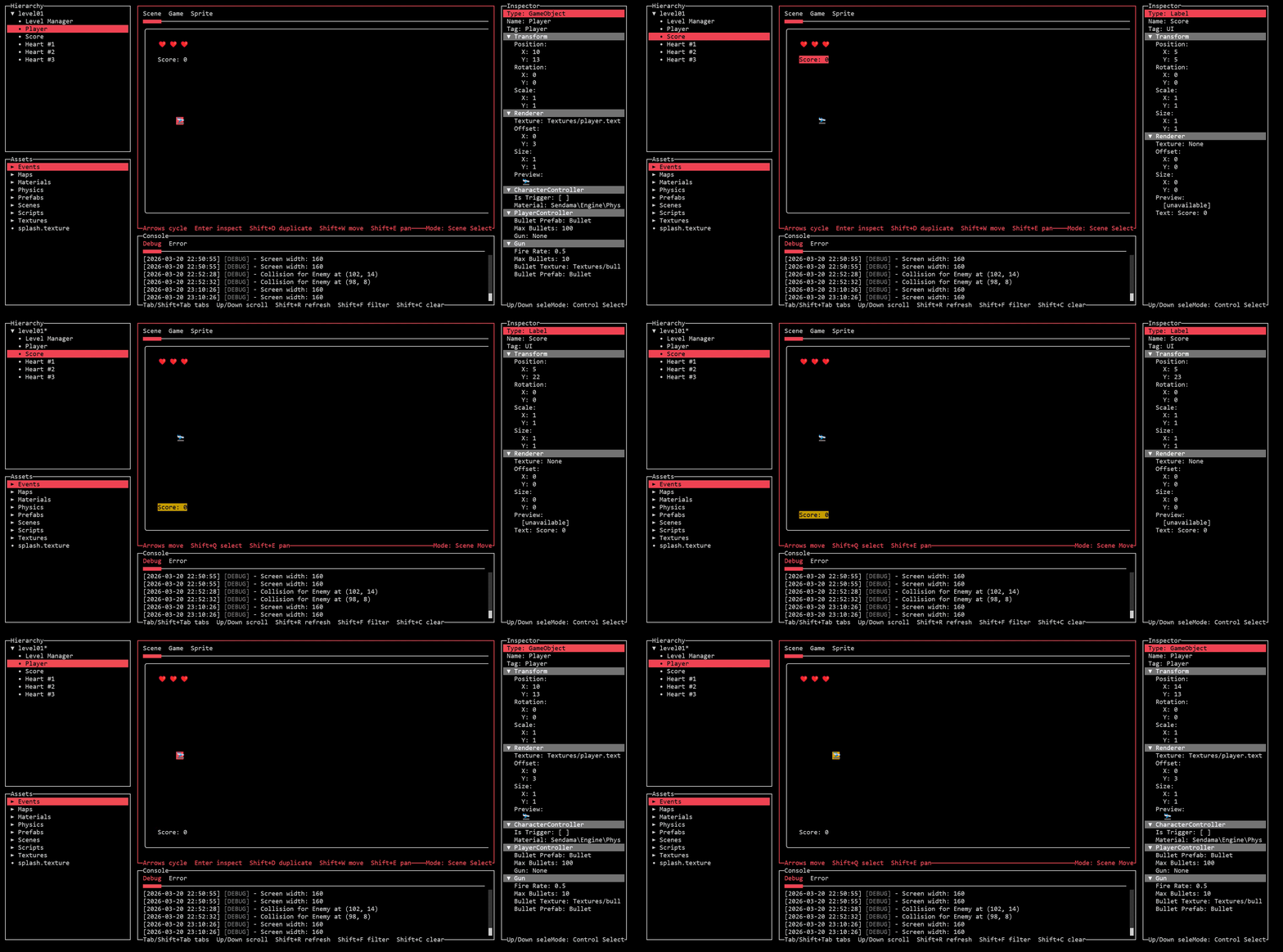
From inside the game project:
sendama editOr point directly at a project:
sendama edit --directory /path/to/projectThe editor expects:
sendama.json- an asset root such as
Assets - at least one scene under
Assets/Scenesorassets/Scenes
If common files are missing, the editor can normalize the project by filling in the usual folders and bootstrap files.
5. Understand The Opening Layout
The default editor layout has five panels:
HierarchyAssetsMainConsoleInspector
The Main panel switches between:
Scenefor placing and selecting scene objectsGamefor play-state monitoringSpritefor editing textures and tile maps
6. Make Your First Edits
A good first session looks like this:
- Open the scene root from
Hierarchy. - Set the scene
Name,Width, andHeight. - Assign an
Environment Tile Mapand, if needed, anEnvironment Collision Map. - Add a
GameObjector UI element fromHierarchy. - Select the object and edit its transform and renderer in
Inspector. - Move it visually in
Main -> Scene. - Press
Ctrl+Sto save the scene.
If you want a concrete first scene target, this is a healthy minimum:
<?php

return [
  'name' => 'Level01',
  'width' => 160,
  'height' => 40,
  'gameObjects' => [
    [
      'name' => 'Player',
      'type' => 'GameObject',
      'transform' => [
        'position' => ['x' => 8, 'y' => 20],
      ],
      'renderer' => [
        'texture' => 'Textures/player.texture',
      ],
      'components' => [
        [
          'type' => Sendama\MyGame\Scripts\PlayerController::class,
          'data' => [
            'speed' => 4.0,
          ],
        ],
      ],
    ],
  ],
];
7. Learn The Save Model Early
This is the most important editor rule:
- scene and hierarchy edits stay in memory until you press
Ctrl+S - texture and tile map drawing is written immediately
- prefab edits are written immediately
- file renames and deletions happen immediately
If you rename an asset that a scene uses, save the scene soon after so the updated path is written back to disk.
8. Run The Game
Use the full runtime when you want to verify gameplay:
sendama playOr:
sendama play --directory /path/to/projectThe most effective workflow is usually:
- edit in
sendama edit - save scene changes with
Ctrl+S - run
sendama play - use the editor console and inspector to support the next change
When you are iterating quickly, it helps to keep the editor and runtime responsibilities separate:
# terminal 1
sendama edit

# terminal 2
sendama play
Next Steps
Continue in this order:
- Using the CLI
- Editor Workflow
- Scene Authoring Basics
- Game Objects and Components
- Textures and Tile Maps
- Prefabs and Reuse
- Scripting Basics
- Input, Collisions, and Triggers
- Changing Scenes
Or jump directly to a topic:
- scene setup: Scene Authoring Basics
- script fundamentals: Scripting Basics
- collision and triggers: Input, Collisions, and Triggers
- level transitions: Changing Scenes